Wombu Mobile App - Complete User Manual
Wombu is a comprehensive club management platform for iOS and Android. Organize members, send announcements, manage events, coordinate activities, and keep your community engaged.
Available on: iOS 17+ and Android 12+
Requirements: Wombu account (free to create)
Cost: Free for members, optional subscriptions for club owners
What is Wombu?
Wombu is a complete club management solution that handles:
- Club creation and discovery
- Member management and role assignment
- Group organization and permissions
- Announcements and notifications
- Event scheduling and RSVP
- Voting and decision-making
- Equipment and inventory tracking
- Member qualifications and certifications
- Document and photo management
- Forms and surveys
- Member billing and subscriptions
Getting Started
This manual covers everything you need to know about using Wombu on mobile. Use the navigation menu on the left to jump to specific topics, or read through sequentially from top to bottom.
For Club Members
Find clubs to join, see announcements, RSVP to events, and stay connected with your communities.
For Club Owners/Managers
Create and manage clubs, organize members into groups, send targeted messages, coordinate events, and run your organization efficiently.
Account Setup & Authentication
Creating Your Account
- Open Wombu on your iOS or Android device
- Tap "Create an account"
- Enter your information:
- First Name
- Last Name
- Email Address (required for sign-in)
- Phone Number (optional, recommended for club identification)
- Password (create a secure password)
- Confirm Password
- Review and accept the Terms of Service
- Tap "Create Account"
- Check your email for a verification link
- Tap the verification link to confirm your email
- You're now ready to use Wombu!
Sign In Options
Email & Password
Enter your email and password on the login screen. Your account is used across all devices.
Google Sign-In
Tap "Continue with Google" to sign in using your Google account. Your first and last name from your Google profile will be used.
Apple Sign-In
iOS users can tap "Continue with Apple" to use Apple Sign-In for a quick, private sign-up option.
Password Reset
- On the login screen, tap "Forgot?"
- Enter your email address
- Check your email for a password reset link
- Tap the link and create a new password
- Sign in with your new password
Your Wombu account is universal. You can join multiple clubs, take on different roles, and manage everything from one account.
App Navigation
Bottom Tab Navigation
The Wombu app uses five main tabs for navigation, accessible from the bottom of every screen:
| Tab | Icon | Purpose |
|---|---|---|
| Clubs | 🏘️ | View and manage your club memberships, discover new clubs, and access club details |
| Events | 📅 | See upcoming events across all your clubs, RSVP, and view event details |
| Alerts | 🔔 | Receive and manage announcements, notifications, and important updates |
| Documents | 📄 | Access shared documents, files, and photo albums from your clubs |
| Settings | ⚙️ | Manage your profile, app preferences, and account settings |
Top Navigation
Each screen includes:
- Back button (←) - Return to the previous screen
- Screen title - Shows the current page name
- Action buttons - Context-specific actions (⚙️ settings, ➕ add, ⋯ menu)
- Profile button (top right) - Quick access to your profile and settings
Swipe Gestures
- Swipe left on a row - Reveals quick actions (delete, edit, etc.)
- Swipe right - Go back to previous screen
- Tap and hold - Access additional options or context menu
Discovering Clubs
Finding Public Clubs
- Go to the Clubs tab
- Tap the Discover section or search icon
- Browse clubs by:
- Category - Filter by Sports, Hobbies, Reading, Other
- Search - Find a specific club by name
- Location - Find clubs near you (if enabled)
- Tap a club card to view full details
- See club information:
- Club logo and name
- Member count and plan tier
- Club description
- Number of groups
- Contact information (if available)
Club Detail View
When viewing a club's details, you can:
- Read About tab - Learn about the club's purpose and goals
- View Members - See who's in the club
- Check Groups - See how members are organized
- Review Events - See upcoming activities
Private clubs don't appear in search. If someone invites you, use the invite link to join them.
Joining Clubs
Method 1: Via Invite Link
- Receive an invite link from a club owner (email, text, social media)
- Tap or open the link on your phone
- The Wombu app opens automatically with club details
- Review the club information
- Tap "Join Club"
- You're now a member and can see all club content
Method 2: Discovery & Request
- Find a public club in Discover
- Tap the club to view details
- Tap "Request to Join"
- Write a brief message about yourself (optional)
- Tap "Send Request"
- Wait for the club owner to review and approve
- You'll get a notification when approved
Some clubs require owner approval for new members. The owner will review your request and approve or reject it. You'll be notified either way.
Leaving a Club
- Go to the Clubs tab
- Find the club you want to leave
- Swipe left on the club or tap the ⋯ menu
- Select "Leave Club"
- Confirm that you want to leave
Once you leave, you won't see the club's content. You can rejoin if you have an invite link or if the club is public.
My Clubs
Viewing Your Clubs
Go to the Clubs tab to see all clubs you've joined. Each club card shows:
- Club logo
- Club name
- Category
- Number of members
- Your role (if visible)
Club Card Actions
Tap a club card to:
- View club overview and details
- See member list
- View groups and access group-specific content
- See recent announcements and events
- Access club-specific tools (depends on your role)
Swipe left on a club card to:
- View club settings (if owner/manager)
- Leave the club
- Report the club (if needed)
Your Role in Each Club
| Role | Permissions |
|---|---|
| Owner | Full control: create/delete club, manage members, settings, billing, send announcements |
| Manager | Everything except billing: manage members, groups, settings, send announcements |
| Member | View content: see announcements, attend events, RSVP, access documents |
You can have different roles in different clubs. For example, you might be an owner in one club and a regular member in another.
Club Overview
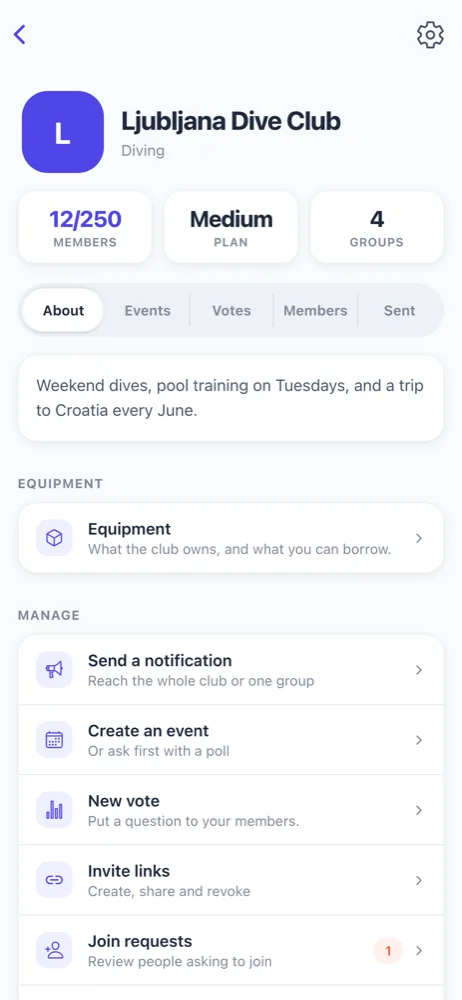
Club Information Section
The top of the club overview shows:
- Club Logo - Visual identity
- Club Name - Official name
- Category - Type of club (Sports, Hobbies, etc.)
- Member Count - Total active members
- Subscription Tier - Current plan (Free, Small, Medium, Unlimited)
- Number of Groups - How many subgroups exist
Club Tabs
Swipe through the tabs to access different sections:
About Tab
View the club's description and purpose. This is what the owner has written to explain what the club does.
Events Tab
See all upcoming events in the club, with dates, times, and locations. Tap an event to see details and RSVP.
Votes Tab
View active votes and polls created by the club. See what members are voting on and cast your vote.
Members Tab
See a list of all club members. Tap a member to view their profile (if they've made it public).
Sent/History Tab
View past announcements and messages sent by the club (available for managers/owners).
Club Quick Actions
Depending on your role, you'll see action buttons:
- ⚙️ Settings - Manage club (owner/manager only)
- 📢 Send Notification - Send announcements (owner/manager)
- 📅 Create Event - Schedule an event (owner/manager)
- 🗳️ New Vote - Start a poll (owner/manager)
- 📋 New Form - Create a survey (owner/manager)
- 👥 Manage Members - Add/remove members (owner/manager)
Club Settings & Management
OWNER/MANAGER ONLY
Accessing Club Settings
- Go to the club
- Tap the ⚙️ Settings button (top right)
- You'll see all management options
Club Information
Edit Club Details
- Club Name - Change the official name
- Description - Update what the club is about
- Category - Change club category
- Logo - Upload or change club image
- Public/Private - Make discoverable or private
Subscription & Billing
View and manage your club's subscription:
- Current Tier - See which plan you're on
- Member Limit - How many members you can have
- Upgrade/Downgrade - Change your subscription level
- Billing History - View past invoices and payments
- Billing Information - Update payment method
Roles & Permissions
Manage who can do what in your club:
- Owner - Full control, can delete club, manage billing
- Manager - Everything except billing
- Assistant - Can invite members and review join requests
- Member - Can view and respond to content
Verification & Safety
Settings related to club security:
- Email verification status
- Club verification badge (if applicable)
- Moderation settings
- Report/block member options
Groups Management
Understanding Groups
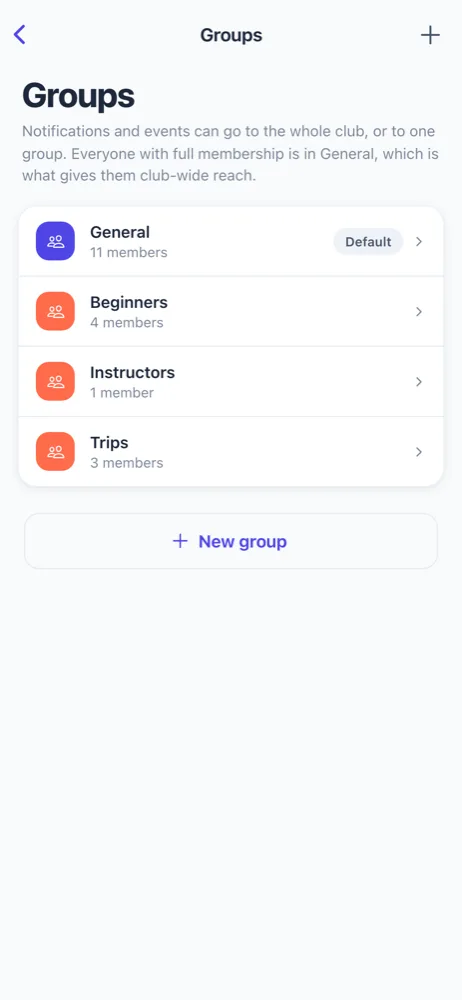
Groups let you organize members within your club for targeted communication. Instead of sending messages to everyone, you can reach specific subsets of members.
Example Group Structures
- Sports Club: Beginners, Intermediate, Advanced, Instructors
- Reading Club: Mystery, Science Fiction, Classics, Book Reviewers
- Community: New Members, Volunteers, Leadership Team, Mentors
- School: Grade 1, Grade 2, Grade 3, Teachers, Parents
Every club automatically has a "General" group for club-wide announcements. All full members are in General by default.
Creating Groups (Owner/Manager)
- Go to Club Settings
- Tap "Groups"
- Tap "New Group" or ➕ button
- Enter the group name
- Optional: Add group description or icon
- Tap "Create Group"
Managing Group Membership (Owner/Manager)
Add Members to a Group
- Go to Club Settings → Groups
- Tap the group you want to edit
- Tap "Add Members"
- Select members from the list
- Tap "Add" to confirm
Remove Members from a Group
- Go to the group details
- Find the member in the list
- Swipe left or tap ⋯ menu
- Tap "Remove from Group"
Viewing Your Groups (All Members)
- Go to the club
- Tap "Groups" section
- See which groups you're a member of
- Tap a group to see:
- Group description
- Member list
- Group-specific announcements
- Group-specific events
Group-Specific Content
Once you're in a group, you only see content (announcements, events, votes) sent to that specific group, plus any club-wide content sent to "General."
Deleting Groups (Owner/Manager)
- Go to Club Settings → Groups
- Swipe left on the group or tap ⋯ menu
- Tap "Delete Group"
- Confirm deletion
• You cannot delete the "General" group
• Deleting a group removes members from it but doesn't remove them from the club
• Archived announcements in the group remain, but the group structure is deleted
Members Management
OWNER/MANAGER/ASSISTANT
Viewing Club Members
- Go to the club overview
- Tap the "Members" tab
- See all current club members
- Members are sorted by role
Member Information
Each member card shows:
- Member name and profile photo
- Their role in the club
- When they joined
- Contact information (if visible)
- Which groups they're in
Inviting Members (Owner/Manager)
Send Invite Links
- Go to Club Settings
- Tap "Invite Links"
- Tap "Create New Link"
- Choose link settings:
- Group assignment (which group they join)
- Expiration date (optional)
- Max uses (optional)
- Tap "Generate Link"
- Share the link via:
- Text message
- Social media
- QR code
- Direct copy
Managing Join Requests (Owner/Manager)
- Go to Club Settings
- Tap "Join Requests"
- See pending requests from people wanting to join
- Review their message and profile
- Tap "Approve" or "Reject"
- If approving:
- Choose which group to add them to
- Set their role (usually Member)
- Confirm
- They'll receive a notification of your decision
Changing Member Roles (Owner)
- Go to Club Settings → Members
- Find the member
- Tap their name to view details
- Tap "Change Role"
- Select new role (Owner, Manager, Assistant, Member)
- Confirm the change
- Member is notified of their new role
Removing Members (Owner/Manager)
- Go to Club Settings → Members
- Find the member
- Swipe left or tap ⋯ menu
- Tap "Remove Member"
- Confirm removal
- Member is removed and can't access club content
- They can rejoin with a new invite link if allowed
Removing a member is permanent. They lose access to all club content, events, and announcements. They can rejoin only with a new invite link.
Invite Links Management
Status: See main "Members Management" section for invite link creation and sharing details.
This section covers creating, managing, and revoking invite links for your club.
Coming Soon
Full detailed documentation for invite link management, tracking who joined via each link, and link analytics.
Join Requests
Status: See main "Members Management" section for handling join requests.
Coming Soon
Full detailed documentation for reviewing, approving, and managing member join requests.
Send Announcements
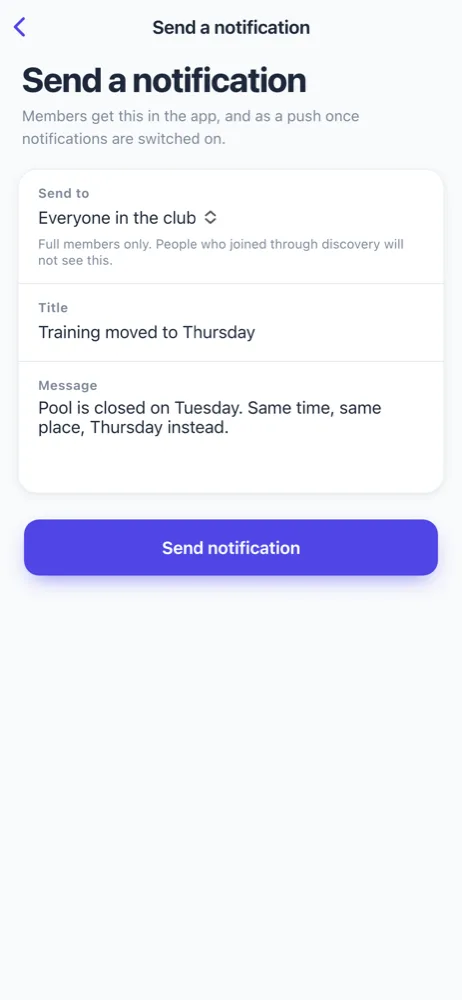
Creating Announcements (Owner/Manager)
- Go to your club
- Tap "Send a notification" button
- Choose recipients:
- Everyone in club - All members see it
- Specific Group - Only that group's members
- Enter announcement details:
- Title - Short subject (required)
- Message - Full announcement text (required)
- Tags/Categories - Optional labels
- Tap "Send Notification"
- Members receive in-app notification and push alert
Announcement Best Practices
- Be Clear: Use descriptive titles and explain what members need to do
- Be Concise: Keep messages focused and easy to read
- Use Correct Groups: Send to specific groups when not all members need it
- Include Details: Date, time, location, deadlines
- Proofread: Announcements can't be edited after sending
- Timing: Send announcements during reasonable hours
Types of Announcements
- General Updates: "Our club meeting this Friday at 7 PM"
- Urgent Notices: "Activity canceled due to weather"
- Administrative: "Please update your contact information"
- Social: "Join us for the annual picnic!"
- Reminders: "Don't forget about tomorrow's game"
Once you send an announcement, it cannot be edited or deleted. Members have already seen it and may have acted on it. Draft carefully before sending!
Notifications & Alerts
Types of Notifications
You'll receive notifications for:
- Announcements - Messages from club owners and managers
- Event Updates - Reminders about upcoming events
- Join Approvals - When your request to join is approved
- New Events - When events are created in your clubs
- Votes & Polls - When votes are created
- Document Uploads - When new files are shared
- Group Invitations - When added to a new group
Viewing Notifications
- Go to the Alerts tab (🔔)
- See all recent notifications from your clubs
- Notifications are grouped by club
- Tap any notification to see full details
- Swipe left to mark as read/unread or delete
Notification Settings
- Go to Settings tab
- Tap "Notifications"
- Toggle notification types:
- Announcements
- Events
- Votes
- Documents
- System notifications
- Set notification sound
- Choose quiet hours (optional)
- Tap "Save"
To receive push notifications, you must also enable notifications in your phone's settings:
iOS: Settings → Notifications → Wombu → Allow Notifications
Android: Settings → Apps → Wombu → Notifications → Allow
Events Management
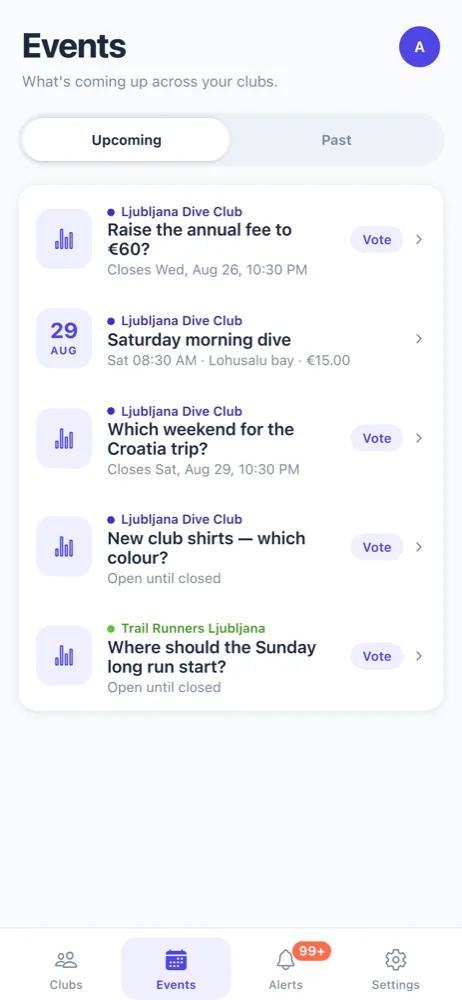
Viewing Events
- Go to Events tab (📅)
- See all upcoming events across your clubs
- Events are sorted by date
- Filter by:
- Upcoming - Future events
- Past - Previous events
- Club - Events from specific club
- Group - Events for specific group
- Tap an event to see full details
Creating Events (Owner/Manager)
- Go to your club
- Tap "Create Event" or "New Event"
- Fill in event details:
- Event Name (required)
- Description - What the event is about
- Date & Time - When it happens
- Location - Where it is (with optional map)
- Capacity - Max number of attendees (optional)
- Cost/Fee - If members need to pay (optional)
- Group Assignment - Which groups can see it
- Optional: Add event image
- Tap "Create Event"
- Members receive notifications
Event Types
- Regular Event - One-time activity (game, meeting, outing)
- Recurring Event - Regular activities (weekly training, monthly meeting)
- All-Day Event - Events with no specific time
- Virtual Event - Online activities with link/details
- Multiple-Day Event - Retreats, camps, conferences
Event Details & RSVP
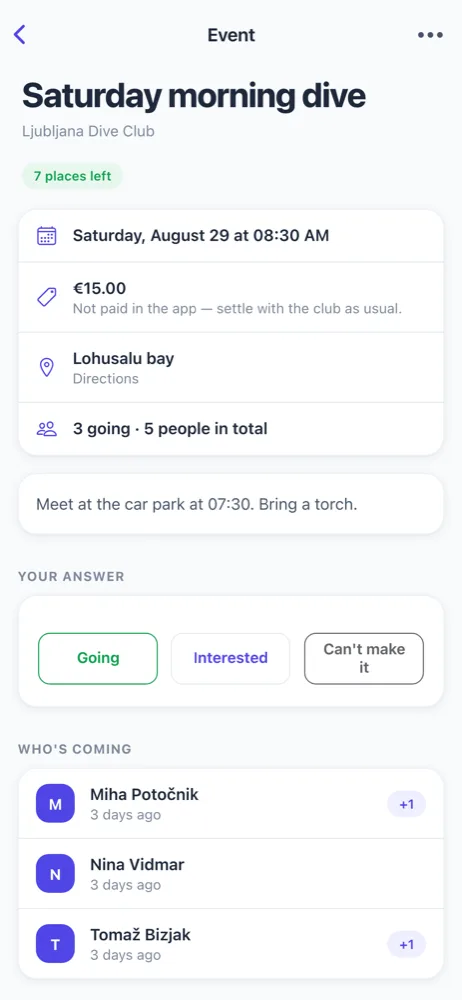
Event Information
When you view an event, you see:
- Date & Time - When the event happens
- Location - Where it is with map/directions
- Description - Full details about the event
- Organizer - Who created the event
- Capacity - How many can attend
- Cost - Any fees involved
- Event Image - Visual representation
RSVP to Events
- Tap an event to view details
- Scroll to "Your Answer" section
- Choose your response:
- Going - You'll attend
- Interested - You might attend
- Can't make it - You can't go
- Your response saves immediately
- Organizer can see who's attending
Changing Your RSVP
You can change your response anytime:
- Tap the event again
- Tap your current response
- Select a different option
Who's Attending
See other members' responses:
- Going - Confirmed attendees
- Interested - Maybe attending
- Can't make it - Not attending
- No response yet - Haven't answered
Event Capacity
If the event has limited capacity:
- When capacity is reached, "Going" option may be disabled
- You can still mark yourself as "Interested"
- Or you can join the waitlist if enabled
Getting Directions
- Tap the location to open map
- Tap "Get Directions"
- Choose navigation app (Apple Maps, Google Maps, Waze)
- Follow directions to the event
Event Reminders
You'll receive notifications:
- When the event is created (announcement)
- 1 day before the event
- 1 hour before the event
- Day-of reminder
Votes & Polls
Understanding Votes & Polls
Club leaders use votes to make decisions democratically. Members can vote on:
- Event decisions ("Which weekend works best?")
- Club policy ("Should we raise membership fees?")
- Activity choices ("What activity for next month?")
- Leadership elections ("Who should be captain?")
- Schedule preferences ("Best meeting time?")
Viewing Votes
- Go to Events tab
- Find votes section
- See all active votes in your clubs
- Tap a vote to see details and options
Voting
- Tap a vote to open it
- Read the question and available options
- Tap your choice to vote
- Your vote is recorded immediately
- You can change your vote until voting closes
Vote Results
You can see:
- Number of votes for each option
- Percentage of votes
- Who voted (if not anonymous)
- How many people have voted
- Vote deadline
Creating Votes (Owner/Manager)
- Go to your club
- Tap "New Vote"
- Enter vote details:
- Question - What you're voting on
- Options - Possible answers
- Description - Context for voters
- Deadline - When voting ends
- Anonymous - Hide voter identities
- Multiple choice - Allow multiple selections
- Tap "Create Vote"
Vote Types
- Yes/No - Simple approval
- Multiple Choice - Pick one option
- Ranking - Rank options by preference
- Scale - Rate on a scale (1-5, 1-10)
- Open-ended - Free text responses
Equipment & Rentals
What is Equipment Management?
Some clubs own equipment that members can borrow (sports gear, tools, instruments, books). Wombu tracks:
- What equipment the club owns
- How many of each item
- Current availability
- Who has borrowed what
- When items are due back
- Lost or damaged items
Viewing Equipment (All Members)
- Go to the club
- Tap "Equipment" section
- See all available equipment
- For each item, see:
- Item name and description
- Total quantity owned
- Available quantity
- Condition
- Rental cost (if any)
Borrowing Equipment (All Members)
- Find equipment in the Equipment section
- If available, tap "Request Rental"
- Specify:
- How many you want
- When you need it
- When you'll return it
- Purpose (optional)
- Tap "Submit Request"
- Manager reviews and approves
- You receive confirmation and pickup details
Returning Equipment
- Return items by the specified date
- Return them to the location specified
- Report any damage or issues
- Your rental is marked as complete
Managing Equipment (Owner/Manager)
Add Equipment to Inventory
- Go to Club Settings → Equipment
- Tap "Add Equipment"
- Enter:
- Equipment name
- Description
- Quantity owned
- Condition
- Rental cost per day (if applicable)
- Maintenance notes
- Tap "Add"
Review Rental Requests
- Go to Club Settings → Equipment → Requests
- See pending rental requests
- Review member's request
- Tap "Approve" or "Deny"
- Send pickup instructions if approved
Track Equipment Status
- See what's currently borrowed
- Track due dates
- Record late returns
- Log lost or damaged items
- Mark items for maintenance
Qualifications & Certifications
What are Qualifications?
Qualifications track member skills and certifications (diving certification, first aid, teaching license, etc.). This helps the club know who's qualified for certain activities.
Viewing Qualifications (All Members)
- Go to the club
- Tap "Qualifications"
- See all members' qualifications
- View:
- Member name
- Their qualifications
- Issue date
- Expiration date (if applicable)
- Issuing organization
Adding Your Qualifications
- Go to Qualifications
- Tap "Add Qualification"
- Select qualification type or enter custom
- Provide:
- Qualification name
- Issue date
- Expiration date
- Issuing body/organization
- Certificate number (optional)
- Certificate image (optional)
- Tap "Add"
Managing Qualifications (Owner/Manager)
Verify Qualifications
- Go to Club Settings → Qualifications
- See all member qualifications
- Review and approve pending submissions
- Verify against records if needed
Create Club Qualifications
- Go to Club Settings → Qualifications
- Tap "Add Qualification Type"
- Define:
- Qualification name
- Description
- Renewal period (if applicable)
- Required for certain roles/activities
- Members can then add this qualification
Set Requirements
Require qualifications for:
- Specific roles (e.g., instructor must have certification)
- Event participation (e.g., advanced dive requires certificate)
- Group membership (e.g., lifeguard group requires lifeguard cert)
Documents & Library
What's in the Library?
Clubs can share documents with members:
- Bylaws and rules
- Meeting minutes
- Financial reports
- Training materials
- Contact lists
- Schedules
- Photos from events
- Handbooks and guides
Accessing Documents (All Members)
- Go to Documents tab (📄)
- See files shared by your clubs
- Documents are organized by club and category
- Tap a document to:
- View it in-app
- Download it
- Share it
- Add to favorites
Uploading Documents (Owner/Manager)
- Go to Club Settings → Documents
- Tap "Upload Document" or ➕
- Select file from your device
- Supported formats:
- Word documents (.docx)
- Spreadsheets (.xlsx)
- Images (.jpg, .png)
- Text files (.txt)
- Add details:
- Document name
- Description
- Category/folder
- Who can access (all members or specific group)
- Tap "Upload"
Photo Albums
Share photos from events and activities:
- Go to Documents tab
- Find the "Albums" section
- Create a new album:
- Name (e.g., "Spring Picnic 2024")
- Description
- Visibility (all members or group)
- Upload photos to the album
- Members can view and download photos
Forms & Surveys
What are Forms?
Club leaders can create surveys and forms to collect information from members:
- Event registration
- Skill assessments
- Feedback surveys
- Membership applications
- Contact information updates
- Preference questionnaires
Filling Out Forms (All Members)
- You'll be notified when a form is available
- Go to the form notification or access from club
- Read the form title and instructions
- Fill out all required fields (marked with *)
- Answer different question types:
- Text input (short answer or long text)
- Multiple choice (pick one)
- Checkboxes (pick multiple)
- Rating scale
- Date/time selectors
- File upload
- Tap "Submit"
- You'll see a confirmation message
Creating Forms (Owner/Manager)
- Go to Club Settings
- Tap "Forms"
- Tap "Create New Form"
- Enter form details:
- Form title
- Description/instructions
- Deadline (optional)
- Who should fill it out (all or specific group)
- Add questions:
- For each question:
- Question text
- Question type
- Required or optional
- Answer options (if applicable)
- Tap "Create Form"
- Send to members
Viewing Form Responses (Owner/Manager)
- Go to Club Settings → Forms
- Select the form to view results
- See:
- Response rate (how many filled it out)
- Summary of answers
- Charts and statistics (if applicable)
- Individual responses
- Export responses for analysis
User Profile Management
Viewing Your Profile
- Go to Settings tab (⚙️)
- Tap "Profile"
- See your account information
Editing Your Profile
- Go to Settings → Profile
- Tap "Edit" or pencil icon
- Update information:
- Profile Photo - Upload or take a photo
- First Name
- Last Name
- Email Address
- Phone Number
- Bio/About - Short description about yourself
- Location - City or region
- Profile Visibility - Who can see your profile
- Tap "Save"
Account Security
Change Password
- Go to Settings → Security
- Tap "Change Password"
- Enter current password
- Enter new password (strong password recommended)
- Confirm new password
- Tap "Update"
Two-Factor Authentication
- Go to Settings → Security
- Tap "Enable 2FA"
- Choose method:
- Authenticator app (Google Authenticator, Authy)
- SMS text message
- Follow setup instructions
- Save backup codes in safe place
Connected Devices
- Go to Settings → Connected Devices
- See all devices logged into your account
- For each device, see:
- Device type and name
- Operating system
- Last access time
- Tap a device to:
- Sign out remotely
- Rename the device
- Remove access
Delete Account
To permanently delete your account:
- Go to Settings → Account
- Scroll to bottom
- Tap "Delete Account"
- Review what will happen:
- All your data will be permanently deleted
- You'll be removed from all clubs
- You cannot undo this action
- Tap "Confirm Delete"
- Enter your password to verify
Deleting your account is permanent and cannot be reversed. All data is lost forever.
App Settings & Preferences
Language
- Go to Settings
- Tap "Language"
- Choose your preferred language:
- English
- Slovenian
- And 20+ other languages
- App changes language immediately
Notifications
See the Notifications section earlier in this manual.
Display & Theme
- Go to Settings → Display
- Choose theme:
- Light - Light background
- Dark - Dark background
- Auto - Follow system setting
- Adjust other display options:
- Font size
- Compact mode
- Animation preferences
Privacy
- Go to Settings → Privacy
- Control who can see:
- Your profile
- Your clubs
- Your contact information
- Your activity
- Choose between:
- Public - Everyone
- Club Members - Only people in your clubs
- Friends - Only approved connections
- Private - Nobody
Data Usage
- Go to Settings → Data
- Optimize mobile data:
- Auto-download images (on/off)
- Auto-download documents (on/off)
- Video quality settings
- Data saving mode
- Clear cache to free storage space
About App
- Go to Settings → About
- See:
- App version
- Build number
- Last updated
- Storage used
- Check for app updates
Subscription & Billing
Subscription Tiers
| Tier | Members | Price/Month | Best For |
|---|---|---|---|
| Free | 20 members | €0 | Small clubs, testing |
| Small | 75 members | €13.11 | Growing clubs |
| Medium | 250 members | €22.94 | Established clubs |
| Unlimited | No limit | €40.98 | Large organizations |
Only club owners can manage subscriptions. Members use clubs free.
Changing Subscription (Owner Only)
- Go to Club Settings
- Tap "Subscription"
- See current plan and limit
- Tap "Upgrade" or "Downgrade"
- Select new plan
- Review pricing
- Tap "Update Plan"
- Complete payment if upgrading
Payment Methods
Wombu accepts:
- Credit cards (Visa, Mastercard, American Express)
- Debit cards
- Local payment methods (varies by region)
Billing History (Owner Only)
- Go to Club Settings → Subscription
- Tap "Billing History"
- See all past invoices and payments
- For each invoice:
- Date
- Amount
- Plan
- Status (paid, pending, etc.)
- Tap to download or view invoice details
Canceling Subscription (Owner Only)
- Go to Club Settings → Subscription
- Tap "Cancel Subscription"
- Select reason (optional)
- Review what happens:
- Club reverts to Free tier (20 members max)
- If over 20 members, must remove members
- Access to premium features ends
- No refunds for partial months
- Tap "Confirm Cancel"
Frequently Asked Questions
Account Questions
Can I have multiple accounts?
Each email address can have one account. If you need a separate account, use a different email address.
Can I change my email?
Yes. Go to Settings → Profile → Edit and change your email. You'll need to verify the new address.
What if I forget my password?
On the login screen, tap "Forgot?" and follow the email instructions to reset your password.
Can I be in multiple clubs?
Yes! One account can be in unlimited clubs with different roles.
Club Management
How do I invite people to my club?
Create an invite link in Club Settings → Invite Links and share it with people.
Can I have multiple owners?
Yes. Go to Club Settings → Members and change member roles. You can make multiple people owners or managers.
What happens if I delete a club?
The club and all its data are permanently deleted. All members lose access. This cannot be undone.
Can members see each other's email addresses?
No. Members can only see what's in public profiles. Email is private unless a member shares it.
Features
Do members get charged?
No. Wombu is always free for members. Only club owners pay subscription fees.
How many groups can I create?
You can create unlimited groups. Each group can have any number of members.
Can I edit announcements after sending?
No. Announcements cannot be edited or deleted after sending. Draft carefully before sending.
Can members vote multiple times?
No. Each member can vote once. They can change their vote until the deadline, but not vote twice.
What file formats can I upload?
PDF, Word (.docx), Excel (.xlsx), Images (.jpg, .png), and Text (.txt) files are supported.
Technical
What are the app requirements?
iOS 17+ or Android 12+. Available on App Store and Google Play Store.
Can I access my data offline?
Limited offline access. Wombu caches recent content, but new announcements and updates require internet.
How often are backups made?
Data is backed up automatically by Wombu. Your data is safe and accessible if something goes wrong.
Can I export my club's data?
Contact support to request data export. Wombu can provide CSV files or reports of your club's information.
Is there a Wombu API?
Wombu has an API for integrations. Contact support for documentation and access.
Support
Where can I get help?
In-app: Settings → Help & Support. Email: support@wombu.eu. We typically respond within 24 hours.
Is there a Wombu community or forum?
Check the Wombu website for community resources, blog posts, and video tutorials.
Can I suggest a feature?
Yes! Go to Settings → Send Feedback to suggest new features or report issues.